
When to Show Labels in a Shelf Test
Every image in a Shelf Test can carry a label: a flavour name, a price, a concept title. Whether respondents see those labels is a single setting on the section, and it's off by default. This guide explains why, and when to turn it on.
Why Labels Are Hidden by Default
Shelf Test asks a specific question: which option catches the eye? That's an attention reaction, and it's what happens in a store, where a shopper sees the design before they read anything on it. A visible caption changes the task. Respondents may start reading names and comparing words, and "which one catches my eye" can quietly become "which name do I like best."
Hidden labels keep the reaction on the image itself. The design has to do the work alone, which is often the point of the test.
When to Turn Labels On
Turn labels on when the comparison depends on something the image can't show:
- Named concepts. You're testing whether "Original" beats "Lemon" as a product name, and the name is part of the thing being judged.
- Price points or claims. The shelf decision includes a visible price or a claim, and you want to see how people react to the whole package.
- Variants of one product line. Labels tell people which variant they're looking at, so the picks reflect a real choice on the shelf.
If the label is just your own bookkeeping, such as "Concept B, matte finish", leave it hidden. You still need it for the report, but respondents don't.
What Stays Visible Regardless
The setting controls only what respondents see on the grid. Labels are always visible to you:
- In the builder, next to each image.
- On the image cards in the report.
- In the Word export of the survey design, under each image.
So a hidden label doesn't cost you anything in the analysis. You can always tell which image was which.
Turning Labels On
- Open the Shelf Test section in the builder.
- Turn on Show labels to respondents.
- Preview the section to check the labels appear under each image the way you expect.
Here is the same sample section with labels off, and then with labels on. The images are sample content.
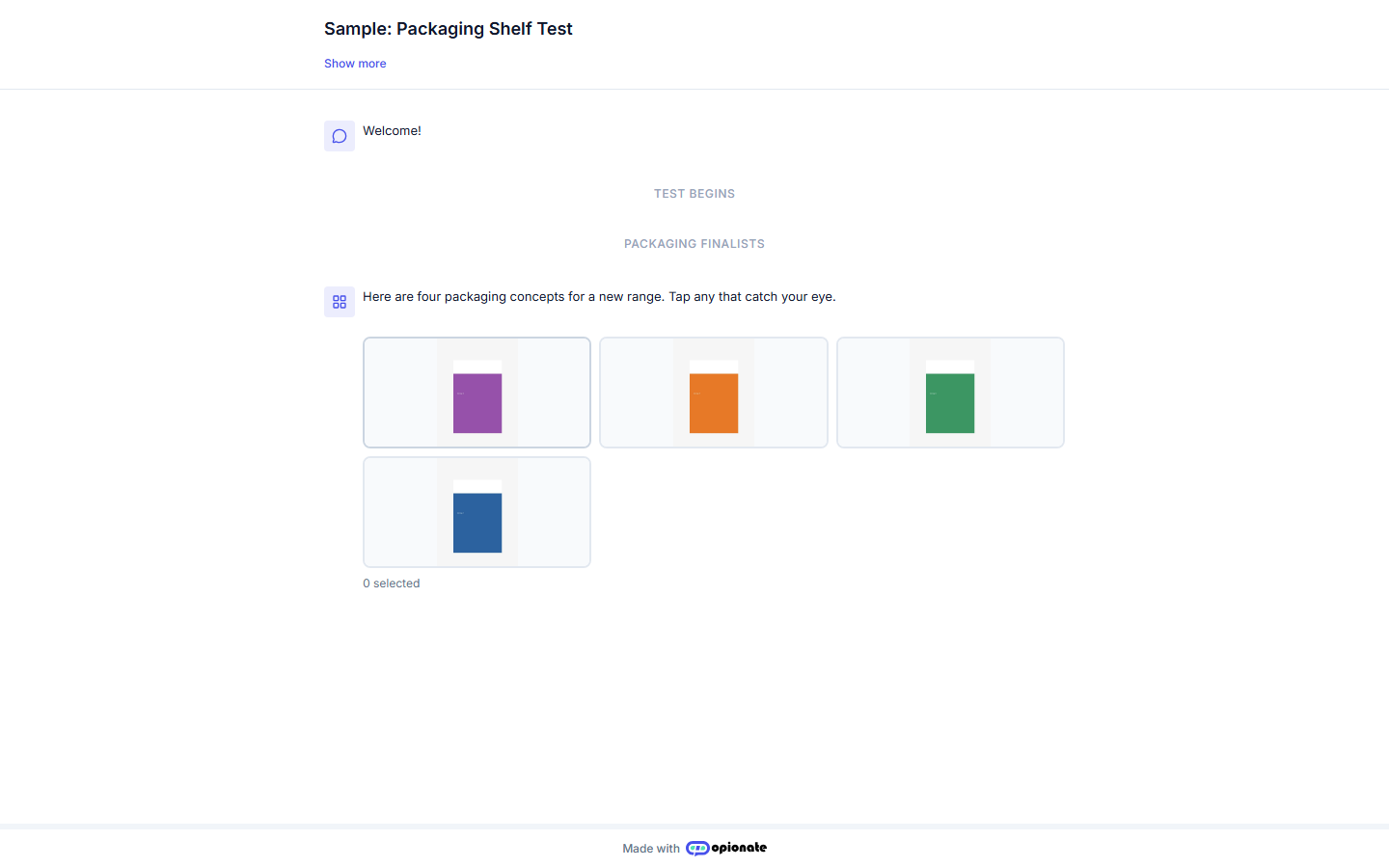
Labels off (the default): respondents see only the images.
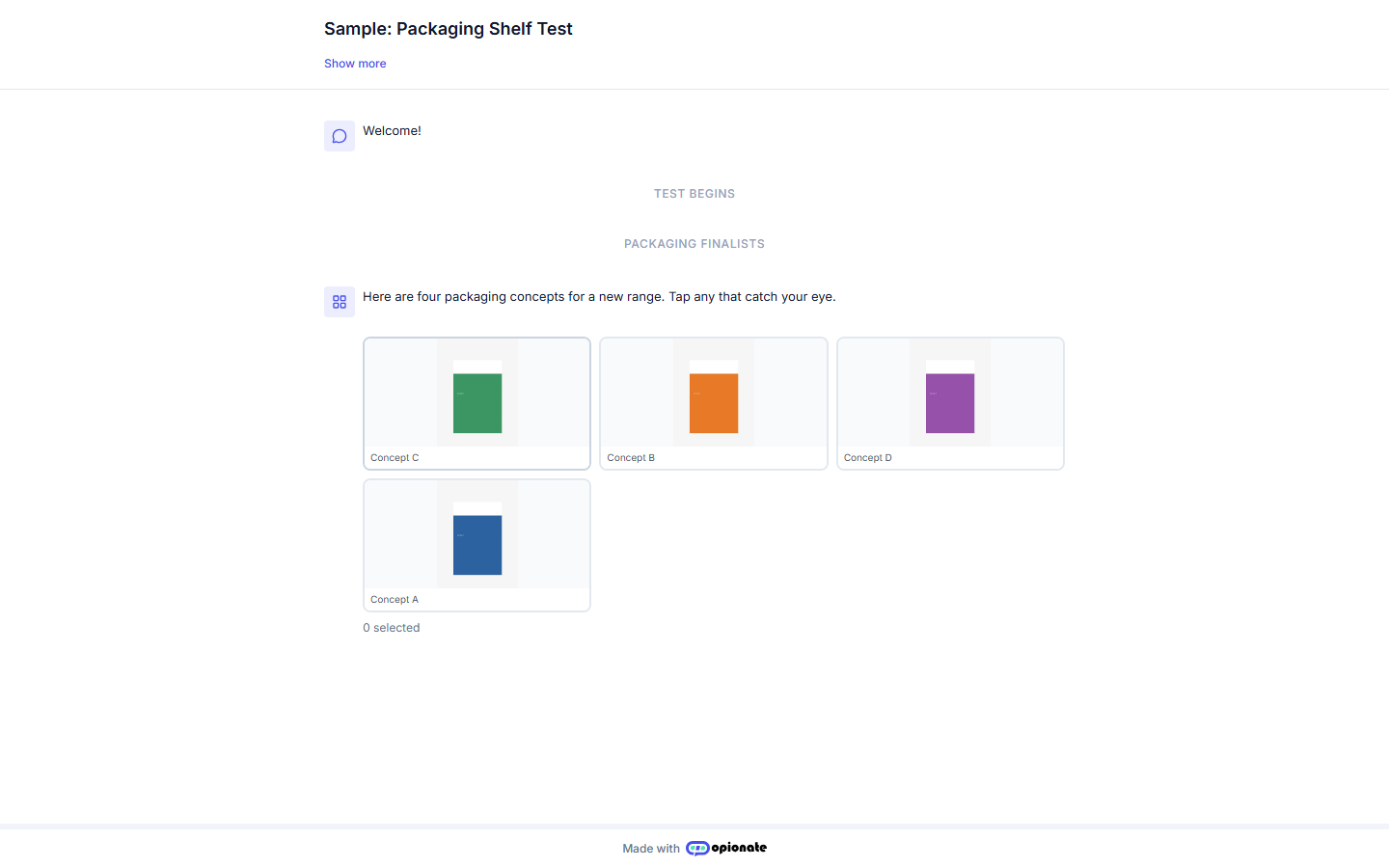
Labels on: each image shows its label, which can shift what people react to.
Turn the setting back off to return to the default.
A Quick Check Before You Publish
Ask yourself one question: if a respondent read the label before deciding, would the result still answer the question I'm asking? If the answer is no, you're testing the name, not the design. Then you need labels on, and you should say so in the report, so the result is read as a comparison of named options and not a pure attention read.
For the full setup steps, see How to Set Up a Shelf Test Section.