
Our guide on How to Build a Good Survey walks through choosing the right question type as part of designing a survey end to end. This one is the other kind of document: a straight reference, one entry per type, to check against when you already know roughly what you're building and just need the exact fields, settings, and capabilities a specific type does and doesn't support - without reading a full narrative guide to find the one detail you needed.
Opionate's builder offers eight question types. Two of them - Hidden Field and Text Block - don't actually ask the respondent anything; the other six do.
Table of Contents
- Single Choice
- Multiple Choice
- Ranking
- Rating Scale
- Open-Ended
- Contact Information
- Hidden Field
- Text Block
- Capability Matrix
- FAQ
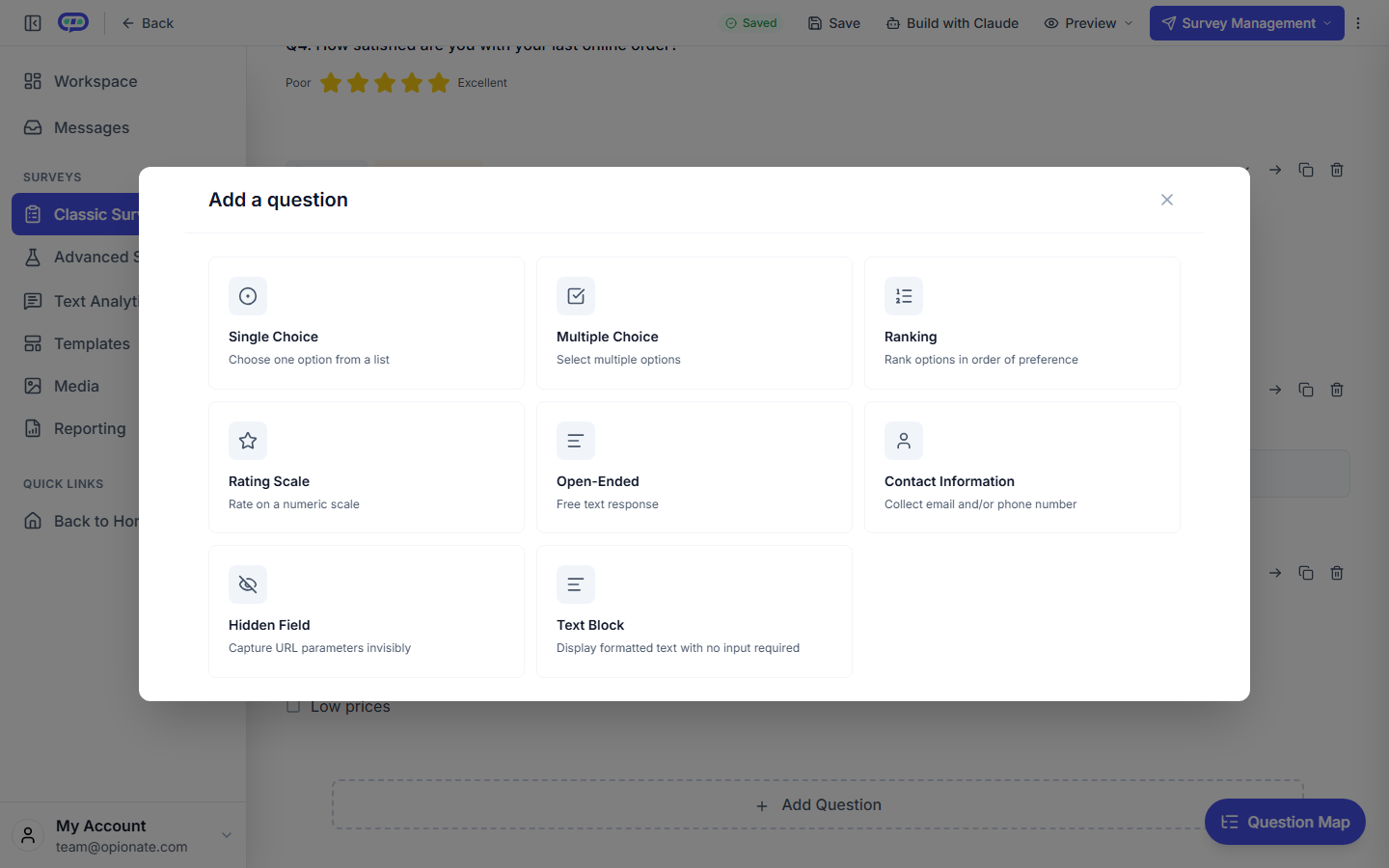
The question-type picker in the builder, with all eight types as they actually appear.
Single Choice
Captures: Exactly one answer from a list of options - a respondent can select only one.
Use it for: Classification and demographic questions ("What's your primary role?"), or any question where the options are genuinely mutually exclusive and forcing a single answer is the actual point, not an accidental constraint.
Settings: A list of options, each independently markable as "Other" (automatically adds a dependent free-text field for an answer not on the list) or "None of the Above" (automatically configured as Exclusive - selecting it deselects every other option in the list). See Using "Other" and "None of the Above" Answer Options for the full mechanics.
Supports: AI Follow-up (on the auto-generated "Other" free-text field specifically - not on the choice question itself), Display Logic, option randomization, and Screen-out/Terminate Logic (routing a disqualified respondent out of the survey based on which option they picked).
Multiple Choice
Captures: Any number of answers from a list of options - a respondent can select as many as apply.
Use it for: Anything where more than one answer can genuinely be true at once ("Which of these features have you used?"). Results read differently from Single Choice results too - see Reading Multi-Select Results: Why Percentages Don't Add to 100% before you're surprised by that in your report.
Settings: The same option list as Single Choice, including "Other" and "None of the Above" (Exclusive). Optional Min/Max Selections bounds how many options a respondent must or may pick - either bound can be left unset independently.
Supports: AI Follow-up (on the "Other" field), Display Logic, option randomization, and Screen-out/Terminate Logic.
Ranking
Captures: An ordered sequence - a respondent arranges a list of items from most to least (preferred, important, whatever the question frames).
Use it for: Any question about order or relative priority, not just selection - "Rank these delivery options from most to least preferred." For a long list, or when you want to understand not just the winning order but how much respondents actually agreed on it, a dedicated Sequence Flow section is usually the better fit than a plain Ranking question - see Ranking Questions vs. Sequence Flow: When Simple Rank Order Isn't Enough.
Settings: A list of items to rank. Optional Min/Max Selections here means something different than it does on Multiple Choice: it sets an Arrangement Range, letting a respondent rank only a subset of the offered items (say, their top 3 out of 10) rather than a forced full ranking of everything on the list. The same field powers a Sequence Flow section's own partial-arrangement behavior.
Supports: Display Logic, option randomization. Does not support AI Follow-up or Screen-out/Terminate Logic - a ranking has no single "answer" a screen-out condition could cleanly evaluate against.
Results: Read as a per-item average rank - the simpler counterpart to Sequence Flow's transition-based Route Flow and Route Network analysis.
Rating Scale
Captures: A single value on a numeric scale - satisfaction, agreement, likelihood, or anything else genuinely measured along a continuum rather than a discrete choice.
Use it for: NPS-style and CSAT-style questions, Likert-style agreement statements, or any "how much/how likely" question. See Common Survey Metrics and When to Use Each for the standard scales and wording behind the most widely used ones.
Settings: A minimum and maximum value, plus an optional label for each endpoint ("Not at all likely" through "Extremely likely," for instance) - label both ends rather than leaving bare numbers if you want responses that mean the same thing to every respondent.
Supports: AI Follow-up, Display Logic. Does not support option randomization (there's nothing to randomize on a fixed numeric scale) or Screen-out/Terminate Logic.
Open-Ended
Captures: Free text, in the respondent's own words.
Use it for: Reasons, stories, suggestions - anything where forcing the answer into a predefined option list would flatten it into something less useful than what the respondent actually meant. Write a specific placeholder ("What specifically made checkout difficult?") rather than a generic one ("Please share your thoughts") - it models the kind of answer you're actually looking for, and specific placeholders reliably produce more specific answers.
Settings: Optional placeholder text, shown in the response field before the respondent starts typing.
Supports: AI Follow-up - and this is the only question type AI Follow-up can be attached to. See AI Follow-up Questions: What They Are and Where They Work for the full feature, and run the responses through Text Analytics once they come in rather than reading every verbatim by hand. Also supports Display Logic. Does not support option randomization (nothing to randomize) or Screen-out/Terminate Logic.
Contact Information
Captures: Name, email, phone, or company details, with format validation built in - an invalid email or malformed phone number is caught at the point of entry rather than silently stored as unusable data.
Use it for: Anywhere you genuinely need to follow up with a respondent individually - a prize draw, a sales follow-up, a support ticket. Keep it optional unless you truly can't proceed without it, and be explicit about why you're asking - an unexplained request for contact details late in a survey is one of the more common reasons people abandon it right before the end.
Settings: Which specific fields to collect (name, email, phone, company), each independently.
Supports: Display Logic only. Does not support AI Follow-up, option randomization, or Screen-out/Terminate Logic. A Contact Information question also can't be added through Claude or another connected AI client - a deliberate safeguard, not a current gap, given what the type collects.
Hidden Field
Captures: A named parameter read directly from the survey link's URL - something like a UTM source tag or a panel ID - with nothing shown to the respondent at all.
Use it for: Tracking where a response actually came from without asking a question about it. See Tracking Campaign Source in Survey Responses Without Asking a Question for the full setup.
Settings: The URL parameter name to capture, and an optional default value used when that parameter is missing from the link.
Supports: Nothing else on this list - no AI Follow-up, no option randomization, no Screen-out/Terminate Logic, and the question itself doesn't support Display Logic (there's no visibility to toggle on a question that's never shown). The one thing worth knowing in the other direction: other questions' Display Logic can reference a Hidden Field's captured value, even though the Hidden Field question can't be shown or hidden itself.
Text Block
Captures: Nothing - it's a display-only block of formatted text, not a question at all, and never appears in your response data as something a respondent "answered."
Use it for: A genuine transition between sections, or instructions a respondent needs before the next real question makes sense - without forcing them to click through an empty "question" just to acknowledge reading something. See When to Use a Text Block Instead of a Question for when it earns its place versus when it's better left out.
Settings: The text content itself (same rich-text formatting - bold, italic, underline, bullets - as any other question's text), and a display duration controlling how long it shows in the Chat Interface before auto-advancing. In Traditional Form, it simply displays as static text with no timer, since there's no "next message" to advance to.
Supports: Display Logic only (a Text Block can still be shown or hidden based on a prior answer, even though it has none of its own). Does not support AI Follow-up, option randomization, or Screen-out/Terminate Logic.
Capability Matrix
| Type | AI Follow-up | Display Logic | Randomization | Screen-out |
|---|---|---|---|---|
| Single Choice | On "Other" field | Yes | Yes | Yes |
| Multiple Choice | On "Other" field | Yes | Yes | Yes |
| Ranking | No | Yes | Yes | No |
| Rating Scale | Yes | Yes | No | No |
| Open-Ended | Yes | Yes | No | No |
| Contact Information | No | Yes | No | No |
| Hidden Field | No | No* | No | No |
| Text Block | No | Yes | No | No |
*A Hidden Field question can't itself be shown or hidden, but other questions' Display Logic can reference its captured value.
FAQ
Is there a "Yes/No" question type?
Not as its own type - a genuinely binary question is a Single Choice question with two options. The eight types above are the complete list.
Which types support AI Follow-up?
Open-Ended only, including the free-text field automatically added when a respondent picks "Other" on a Single Choice or Multiple Choice question. It's never available on Rating Scale, Ranking, Pairwise, or any other closed-ended format - a strict rule, not a configurable setting.
What's the difference between Multiple Choice's Min/Max Selections and Ranking's?
On Multiple Choice, it bounds how many options a respondent must or may select. On Ranking, the same field pair instead sets an Arrangement Range - how many of the offered items a respondent must or may place in order, letting a long list be ranked only down to a top subset rather than end to end.
Can I add a Contact Information question through Claude or another AI client?
No - this is the one question type deliberately excluded from AI/MCP-based survey authoring, given what it collects. Add it directly in the builder instead.
Does a Hidden Field question show up when I preview my own survey?
No - since it's invisible to respondents by design, it's invisible in preview too. Check the resulting response data to confirm it's capturing correctly, not the take-flow itself.
Do all eight types work the same in Chat Interface and Traditional Form?
Yes, with one visible difference: Text Block auto-advances after its display duration in Chat Interface, while Traditional Form simply shows it as static text with no timer. Every other type behaves identically in both.
For the full picture of choosing between these eight and putting a whole survey together, see How to Build a Good Survey: A Practical Guide to Question Types, Structure, and Design.